
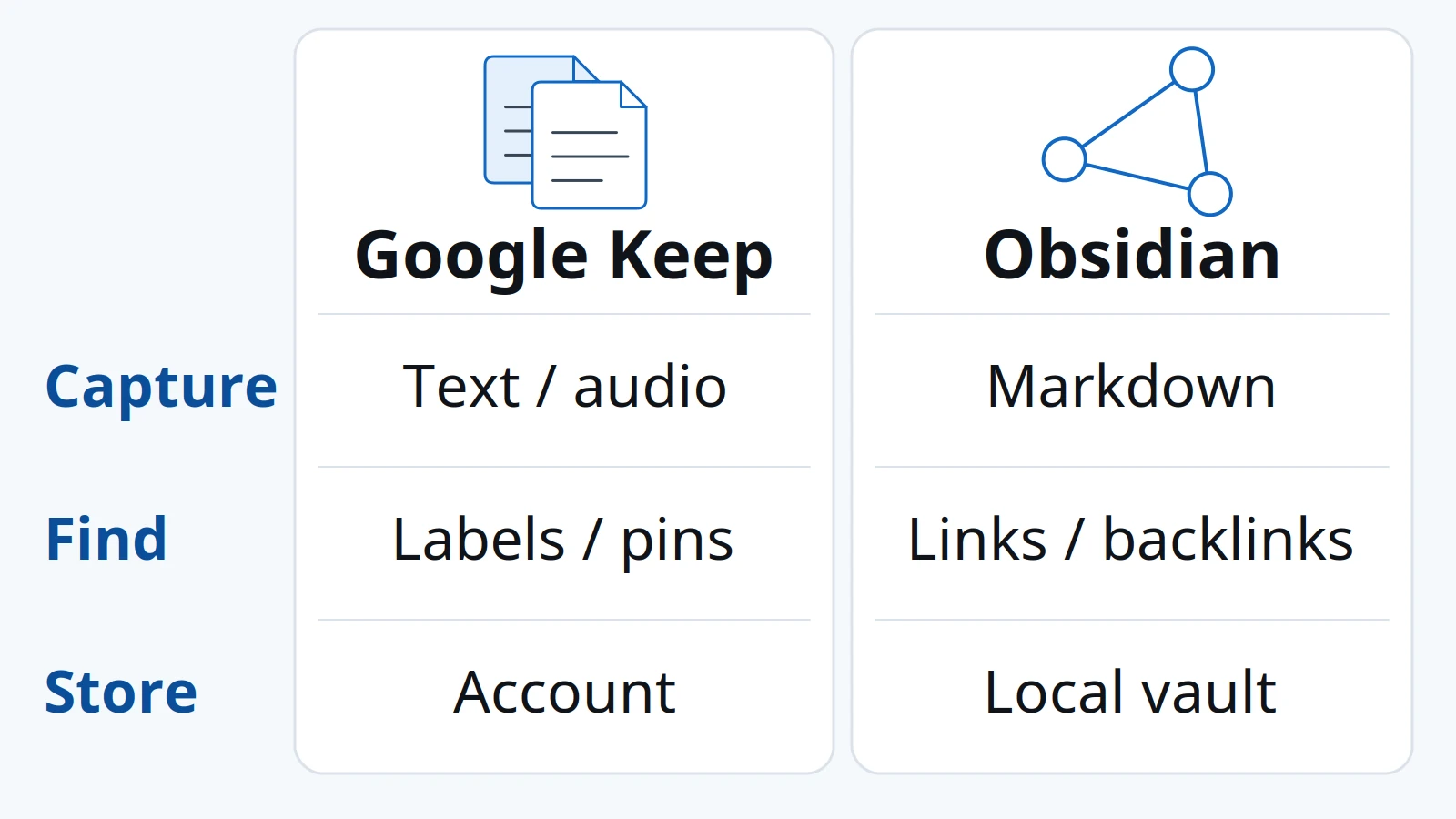
A complicated capture routine can cost you the idea you meant to save. Start with Google Keep for short notes and shared lists, or Obsidian for a local Markdown collection whose notes you want to connect and reuse. This is a comparison of documented workflows, not our hands-on test of either Android app.
For Obsidian vs Google Keep on Android, choose by what happens after capture: does the note simply need to be found or checked off, or should it become part of an interconnected reference collection? Keep documents built-in text, list, image, drawing and audio capture; Obsidian documents local files and links between notes. Our recommendation is to check the capture route, retrieval method and cross-device setup you actually need before migrating. Neither a larger feature list nor a successful sync proves that your notes are recoverable.
Scroll horizontally to view all table columns.
| Input or item | Typical value or source | Why it matters |
|---|---|---|
| Short text or spoken idea | Keep’s Android creation options 1 | A built-in capture route may be enough |
| Home-screen access | Keep’s Quick capture and note widgets 3 | Put the relevant entry point within reach |
| File ownership | Obsidian’s local Markdown vault 4 | Decide whether you need files you can manage directly |
| Connections between notes | Obsidian links and backlinks 5, 6 | Retrieve context, rather than only a remembered phrase |
| Another device | Account access for Keep; a chosen vault sync route for Obsidian 1, 7 | Saving locally and reaching another device are different jobs |
| Moving existing notes | Keep export and Obsidian’s Importer 11, 12 | Inspect what the migration preserves and drops |
For the broader app stack, use the Android productivity and essential apps guide. Here, the task is narrower: choosing where your notes belong.
Capture on Android: match the input to the moment
Keep is the starting point we suggest when a note begins as a shopping item, a short thought, a photo or a spoken memo. Google’s Android instructions describe those creation options and a setting to create text notes by default. That supports a simple capture workflow; it does not establish that Keep opens faster on your phone. 1
Its documented home-screen widgets include Quick capture, Single note and Note collection. A visible checklist and a shortcut for creating a note solve different problems: one helps you consult existing information, the other helps you save new information. 3
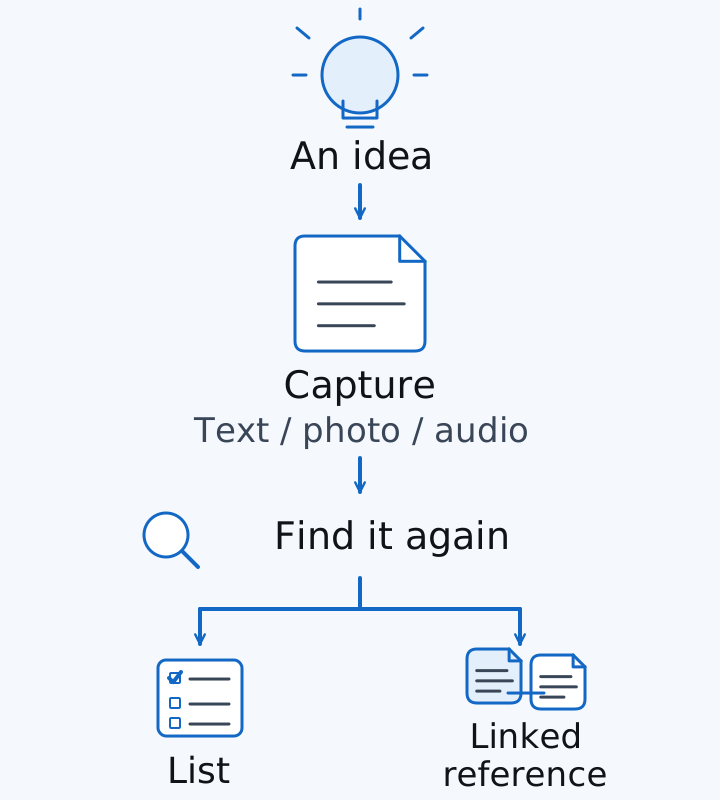
Original workflow illustration, not app screenshots. Choose the capture route before designing the archive.
Our suggested check is to use an invented note in the situation that matters to you. Create text, add the relevant attachment or recording, leave the app, and find it again. For Obsidian, begin with an ordinary note in the intended vault before adding plugins or automation. Check whether choosing a file and adding context feels reasonable for your task; we have not measured the number of taps.
When arranging shortcuts on a replacement phone, follow the new Android phone setup checklist. Keep the test focused on capture and retrieval rather than rebuilding your whole home screen.
Takeaway: Put the input you actually use within reach; judge the archive separately.
Linked Markdown: decide what you want to find later
Obsidian is the stronger candidate in our reading when notes need relationships, not just labels. A vault is a local folder, and its notes are Markdown-formatted plain text files. Markdown expresses structure such as headings and lists using text syntax; Obsidian’s file model lets other editors and file managers work with the notes. 4
An internal link connects one note to another. A backlink shows an incoming link: the other note that refers to the one you have open. Obsidian documents both Wikilinks and Markdown links, plus a built-in Backlinks plugin. 5, 6
Consider this invented example: “Reading idea” links to “Project plan.” When revisiting the plan, a backlink can point you toward the reading note that informed it. This illustrates the documented relationship; it is not a record of our app testing.
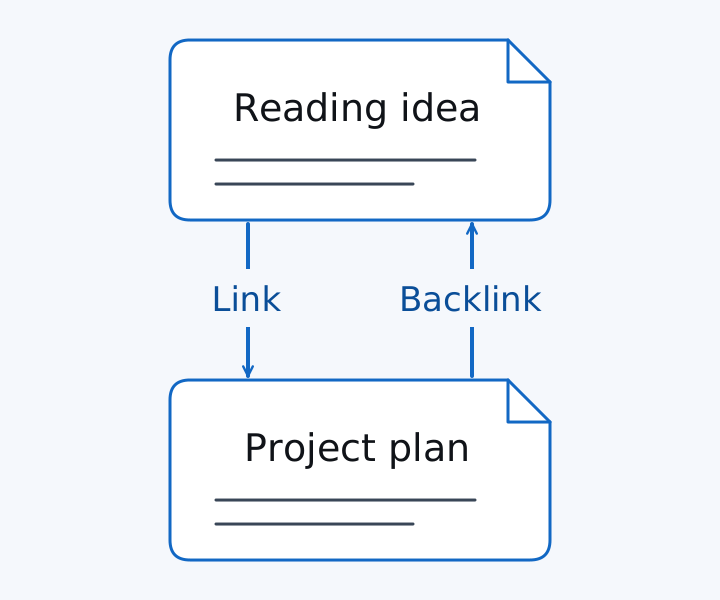
Original explanation of a link and backlink. The example note titles are fictional.
Keep’s documented organization uses labels, colors and pinned notes. Those help group or surface notes; they address a different retrieval task from following a network of references. 2 Our practical dividing line is whether you usually remember what to search for, or need to revisit why two pieces of information belong together.
Plain text also needs a portability check. Obsidian’s documentation notes that block references are specific to Obsidian. If opening notes in another editor matters, check an example with links and formatting there before committing to an elaborate structure. 5
Takeaway: Choose links when their relationships help you reuse information, rather than adding them to every scrap.
Sync: separate the working copy from the route to another device
Keep suits an account-based workflow: Google’s creation guide describes finding notes from other devices. Obsidian starts with a local vault, so cross-device use requires a deliberate synchronization route. Do not treat those storage models as interchangeable. 1, 4
Obsidian’s official guide lists Android for Obsidian Sync. It also includes Android among Google Drive’s recommended systems, while explaining that vault syncing through Drive is not officially supported and can use third-party apps or plugins. OneDrive is described as having limited Android functionality; iCloud’s listed systems are Apple devices. Verify the actual local vault and sync route instead of assuming that a cloud folder visible on your computer is sufficient. 7
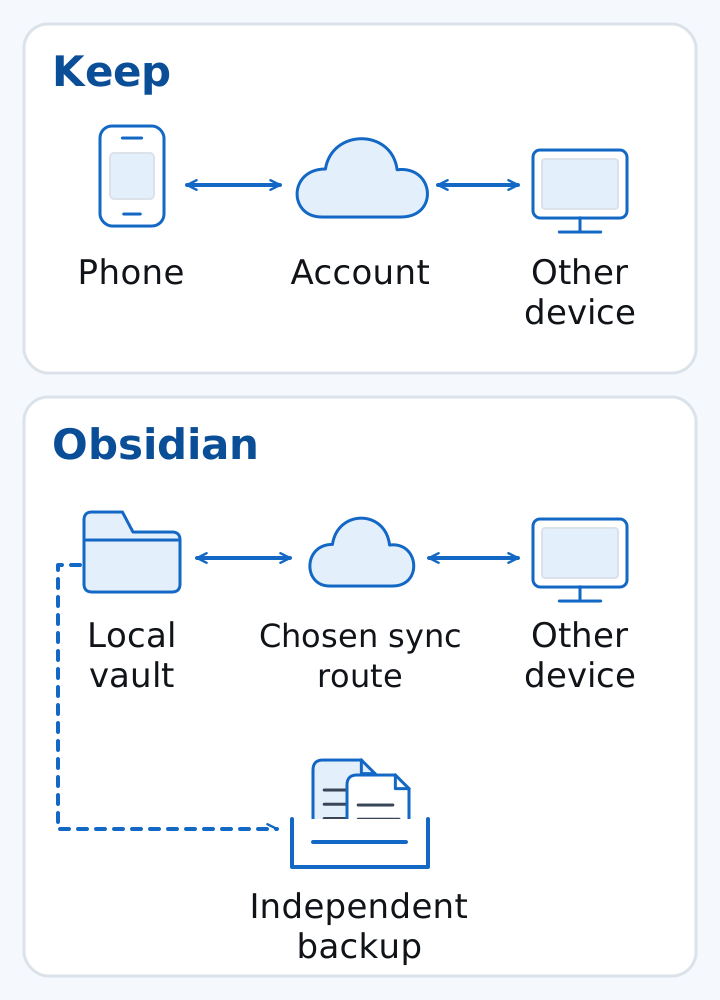
Original storage illustration. Arrows show intended data routes, not measured sync reliability or an endorsement of a third-party service.
Obsidian’s base app is free to use; its optional Sync service requires a subscription. We are comparing the responsibility each route creates, rather than quoting fees. Check the current service terms before choosing it. 16, 7
If you need a file manager to inspect or copy a test vault, the F-Droid app guide’s file-manager section suggests checking folder access with disposable files first. Confirm access to the actual vault folder before copying important notes.
For a cross-device check, create a disposable note, confirm it reaches the intended second device, edit it there, and confirm the return change. For Obsidian, also identify the actual local vault folder. Avoid combining competing sync routes on the same working vault.
Common mistake: Calling a synced copy a backup. Obsidian’s backup guide explicitly separates syncing from backup; keep an independent recoverable copy and try opening it. 13
Use the Android backup planning guide to list the data and accounts that need separate recovery plans. It is broader than notes and does not replace a vault backup check.
Takeaway: Verify the complete route between your devices, then check recovery independently.
Sharing: a shared list and a shared vault are different commitments
Keep is our starting recommendation for an everyday list another person should edit. Its Android sharing instructions let collaborators edit note contents, while personal labels, colors and archive choices remain individual. Sending a copy to another app is a separate operation from adding a collaborator. 8
Obsidian Sync also documents shared vaults, so “Obsidian cannot share” is too broad. All collaborators need an active Sync subscription, and its shared-vault documentation says it does not support collaborative live editing of the same file. Choose it for a shared file collection only after checking that model with the people involved. 9
Scroll horizontally to view all table columns.
| Same decision factor | Google Keep | Obsidian |
|---|---|---|
| Android capture | Text, lists, images, drawings and audio 1 | Create notes in the intended local vault; check your capture routine 4 |
| Working storage | Account-based notes accessed through Keep 1 | Local Markdown files in a vault folder 4 |
| Cross-device route | Access notes through Keep on another device 1 | Choose a vault sync method with Android support 7 |
| Independent recovery | Download and inspect a Keep export 11 | Back up the vault separately from sync 13 |
| Entry point for another person | Add a collaborator to the note 8 | Invite a collaborator to a shared Sync vault 9 |
| Organization | Labels, colors and pins 2 | Local files, internal links and backlinks 4, 5, 6 |
| Transfer to another app | Send a copy or export an archive 10, 11 | Work with Markdown files; check app-specific syntax 4, 5 |
| Main responsibility to check | Correct account and sharing choice | Vault location, sync route and independent backup |
Takeaway: Choose the sharing unit you need—a note or a vault—and verify the other person’s access.
Choose by the life of the note
Start with Keep if the note usually ends as a completed list, a remembered detail or a short message to someone else. Start with Obsidian if it becomes reusable project context, research or a reference linked to other notes. These are editorial recommendations based on the documented models, not a performance ranking.
- Shopping or a household list: try Keep’s note collaboration before building a shared vault.
- Reading notes feeding a project: try Obsidian links and backlinks with invented material before restructuring the archive.
- Frequent photo or audio capture: try Keep’s documented Android options, then check what you need to retain beyond the original note.
- Direct access to Markdown files: start with Obsidian, and settle the Android sync route before relying on another device.
- Little interest in maintaining files: stay with a simpler workflow unless a specific missing capability justifies the change.
If attachments are the main concern, use the Android storage capacity comparison to think about phone storage separately. An app choice alone does not resolve your attachment budget.
Obsidian’s Sync security documentation distinguishes remote encryption from local storage: Sync does not encrypt the local vault. Do not interpret “local” as a blanket confidentiality guarantee. 14 Likewise, adding community plugins changes the trust boundary: Obsidian documents that plugins inherit its access levels. 15 Start with built-in capabilities and add an extension only for a clear missing job.
Takeaway: Let the note’s future use decide the app; avoid inheriting maintenance you do not need.
Use both only when the handoff has a purpose
Using Keep for capture and Obsidian for durable reference can fit a mixed workflow, provided you choose where the official version of each note lives. This is our proposed manual routine, not a built-in connection between the apps. It avoids leaving two independently edited copies whose relationship you cannot explain.
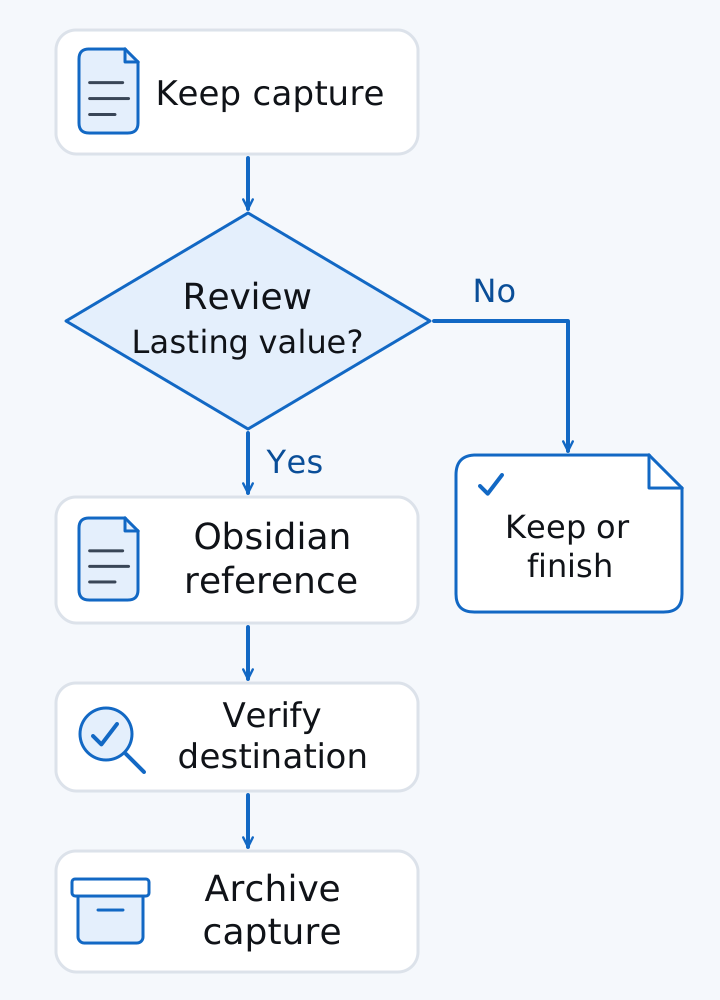
Original editorial workflow. There is no automatic bridge or ongoing two-way sync implied by these arrows.
Capture in Keep, review whether the note has lasting value, and move the useful content into an Obsidian reference if it does. Google’s Send via other apps operation copies note contents to a chosen app; it is not a promise of an Obsidian destination or complete metadata transfer. Check the installed options, or copy the relevant text manually. 10
After checking the destination, link it to the relevant reference note and archive the temporary capture. A shared household checklist can remain in Keep; it has no reason to move merely because you also keep research elsewhere.
Common mistake: Keeping both copies active without a rule for which one is authoritative. Settle that rule before adding an automated bridge.
Include each note’s final home in your Android data recovery plan. A captured idea and its durable reference may need different recovery routes; recording that distinction is part of the handoff.
Takeaway: Keep both only if you can name the handoff and the final home of each note.
Before switching: test migration and recovery with a copy
Moving Keep notes into Obsidian has an official documented path: export Keep through Google Takeout, then use Obsidian’s Importer with the Google Keep ZIP format. The important check is the imported result, not just whether the import finishes. Begin with a separate test vault rather than replacing your working archive. 12
The importer guide specifies that checklist indentation becomes top-level items, and that reminders and user assignments are not imported. Keep’s export guide also warns that some work or school account data may be unavailable for download. Those limits matter before choosing a migration date. 12, 11
Our suggested acceptance checklist:
- Keep the original export and inspect a few representative notes in the test vault.
- Check text, attachments, checklist structure and any information you depended on outside the note body.
- Open an imported file outside Obsidian if independent file access is part of your reason to move.
- Check a note on the intended second device, including an edit in the return direction.
- Open an independent backup or export before retiring the old setup.
If you are also changing platforms, the iPhone-to-Android transfer guide covers the wider handover. Do not assume a successful phone transfer includes a complete note-app migration.
Before wiping the previous phone, use the Android phone selling checklist. Confirm the intended destination and recovery route while the source is still available.
Takeaway: Keep the original until you have checked the migrated contents, cross-device access and recovery.
When this does not apply
This comparison assumes you can choose your Android note workflow. Work or school rules may restrict account use, exports or where files belong; verify those requirements first. Someone who needs concurrent editing of the same document should evaluate that requirement directly rather than assume a shared vault provides it.
We have not installed or benchmarked either app for this article. It does not establish startup speed, sync latency, battery use, offline behavior for every attachment or compatibility with a particular third-party plugin. The illustrated capture and migration checks are actions for you to perform, not results we have observed.
This comparison makes no claim that local storage makes an app open source or inherently safe.
Takeaway: Resolve policy and collaboration requirements first, then check behavior on your actual devices.
FAQ
What is the downside of Obsidian?
The maintenance burden is the relevant tradeoff here: you choose where the vault lives, how another device gets it and how recovery works. Start without community plugins; add one only when its benefit warrants the documented file and network access implications. 7, 15
Does Google have anything like Obsidian?
Keep covers capture and lightweight organization, while its documented Copy to Google Docs route moves content into a document. Neither operation establishes the local Markdown-vault and backlink workflow compared here. Choose for the required task, rather than treating the apps as identical substitutes. 10
What can I use Google Keep for?
A shared packing checklist, a photo note or a short voice memo are examples supported by its documented capture and sharing options. Text formatting is also documented on Android, so “Keep has no formatting” is an inaccurate shortcut. 1, 8
How to import Google Keep into Obsidian?
Follow Obsidian’s Google Keep importer guide: download a Keep export from Takeout, select Google Keep (.zip) in Importer, and inspect the preview and result. Use a test vault first. The guide lists checklist indentation, reminders and assignments among the migration limitations. 12
Can I export notes from Google Keep?
Yes. Google documents exports containing note contents, attachments and organizational information such as labels and note state. That is an archive of exported data, not proof that another app will recreate every behavior. Work or school account restrictions may affect what is available. 11
How do I view my notes like Google Keep?
We have not verified a Keep-style card view in Obsidian on Android, so this guide cannot provide a confirmed setup path. If that view is essential, keep the current workflow until you can validate a particular theme or plugin on your phone; the older forum suggestions are not current compatibility evidence.
Method and sources
This comparison is compiled from Google Keep’s Android help and Obsidian’s public documentation, with AI assistance. The recommendations and fictional note example are editorial explanations. No device testing, timing measurements or independent security audit was performed for this article. The source list below identifies the documentation used; cross-device platform support and importer limitations should be rechecked before a major change.
Related reading
- Android productivity guide — Place note capture within a broader file and workspace routine.
- Android backup planning — Identify the other data and accounts that need a recovery plan.
- New Android phone setup — Arrange your daily capture route when setting up a phone.
Sources & methodology16 sources
Evidence used for this article. Links open the original source in a new tab.
- Create or edit a note — Android — Google Keep Help
- Organize your notes — Android — Google Keep Help
- Get notes on your Android home screen — Google Keep Help
- How Obsidian stores data — Obsidian Help
- Internal links — Obsidian Help
- Backlinks — Obsidian Help
- Sync your notes across devices — Obsidian Help
- Share notes, lists & drawings — Android — Google Keep Help
- Collaborate on a shared vault — Obsidian Help
- Send a Keep note to another app — Android — Google Keep Help
- Export your data from Google Keep — Google Keep Help
- Import from Google Keep — Obsidian Help
- Back up your Obsidian files — Obsidian Help
- Security and privacy — Obsidian Sync — Obsidian Help
- Plugin security — Obsidian Help
- License overview — Obsidian
Related Articles
Three F-Droid Apps Worth Trying: Podcasts, Passwords and Files
Podcasts: AntennaPod; local vault: KeePassDX; files: Fossify File Manager. Check package IDs, permissions, updates and a restore before replacing an app.
Ultimate Android Productivity and Essential Apps Guide
Start with one capture app, one notes store and a checked backup. Test sync and permissions before migrating; add Tasker automation or a supported external display only when needed.
Back Up Android: Photos, Messages and Authenticator Access
Back up Android photos, messages and authenticator access as separate systems, then verify each one before a reset, repair, sale or trade-in.